PgRouting
Installing PgRouting
PgRouting can be enabled on your PostgreSQL database via the Extension tab or via Command Line.
Note
PostGIS must be enabled priort to installing PgRouting
Command Line
To install via command line:
Connect to PostgreSQL
1root@geohelm:~# su - postgres
2postgres@geohelm:~$ psql
3psql (12.2 (Ubuntu 12.2-2.pgdg18.04+1))
4Type "help" for help.
5
6postgres=#
If you have not created a database, create one now.
1postgres=# create database geohelm;
2CREATE DATABASE
3postgres=#
Connect to your database.
1postgres=# \c geohelm
2You are now connected to database "geohelm" as user "postgres".
3geohelm=#
Install the PostGIS extension.
1geohelm=# create extension postgis;
2CREATE EXTENSION
3geohelm=#
Install the PgRouting extension.
1geohelm=# create extension pgrouting;
2CREATE EXTENSION
3geohelm=#
Note: GeoHelm also includes fuzzy_match_string, tiger, postgis_topology.
Verify the installation via command line or the PostgreSQL Management Page
 1geohelm=# \d
 2            List of relations
 3Schema |       Name        | Type  |  Owner
 4--------+-------------------+-------+----------
 5public | geography_columns | view  | postgres
 6public | geometry_columns  | view  | postgres
 7public | raster_columns    | view  | postgres
 8public | raster_overviews  | view  | postgres
 9public | spatial_ref_sys   | table | postgres
10(5 rows)
Extensions Tool
To install using the Extension installer, click on the Extensions tab as shown below.

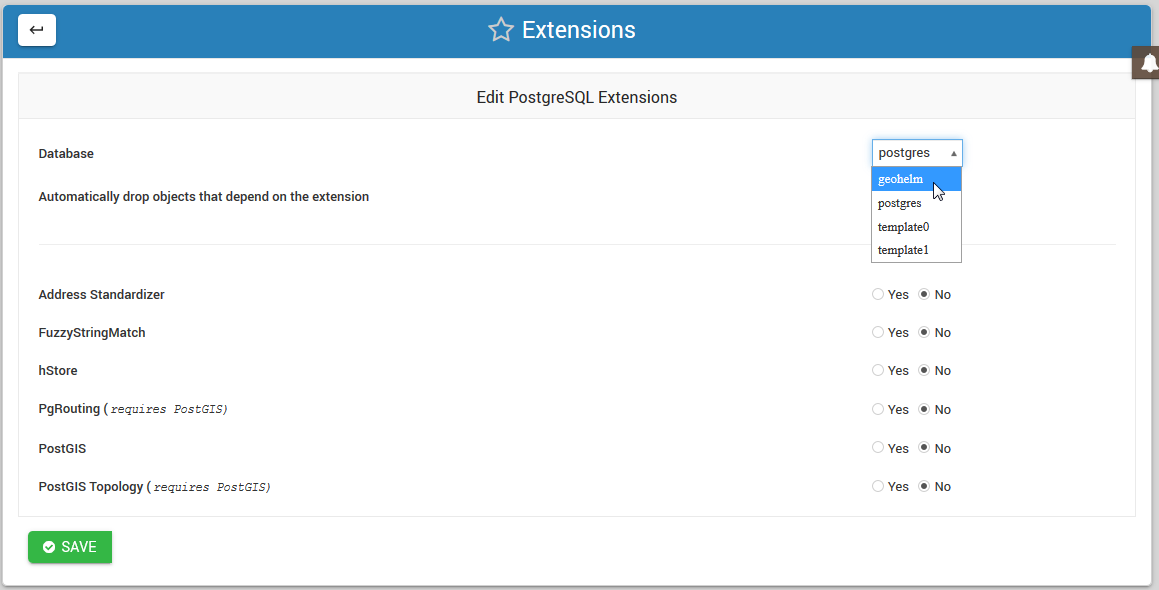
Select the target database from the drop-down as shown below.
Note
You must FIRST install PostGIS prior to installing PgRouting.
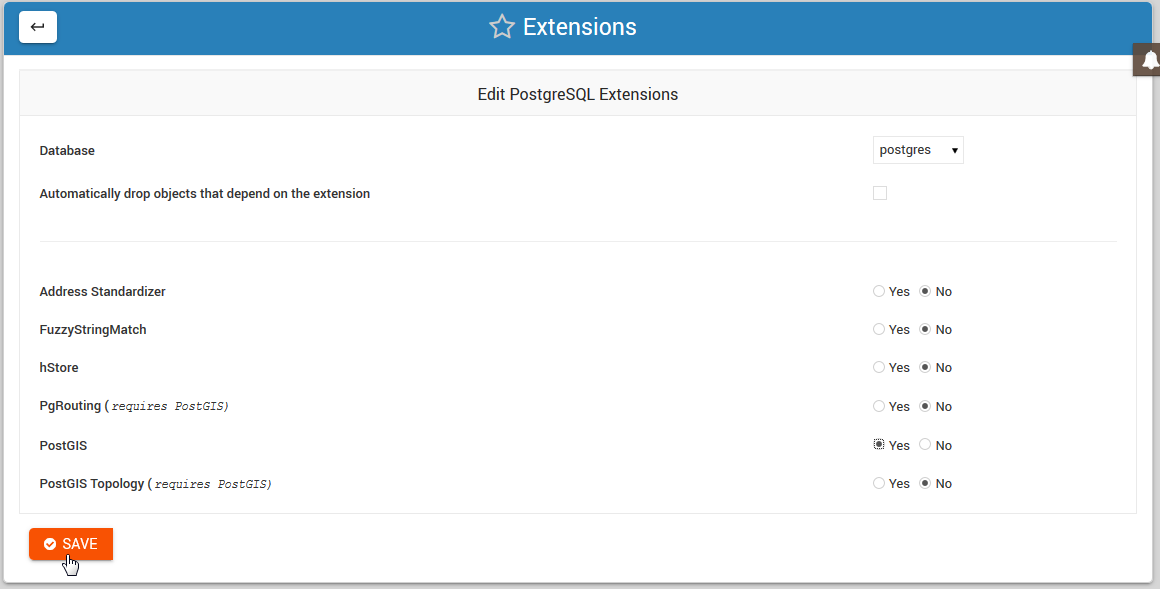
Tick the PostGIS select button and then click the Save button as show below:
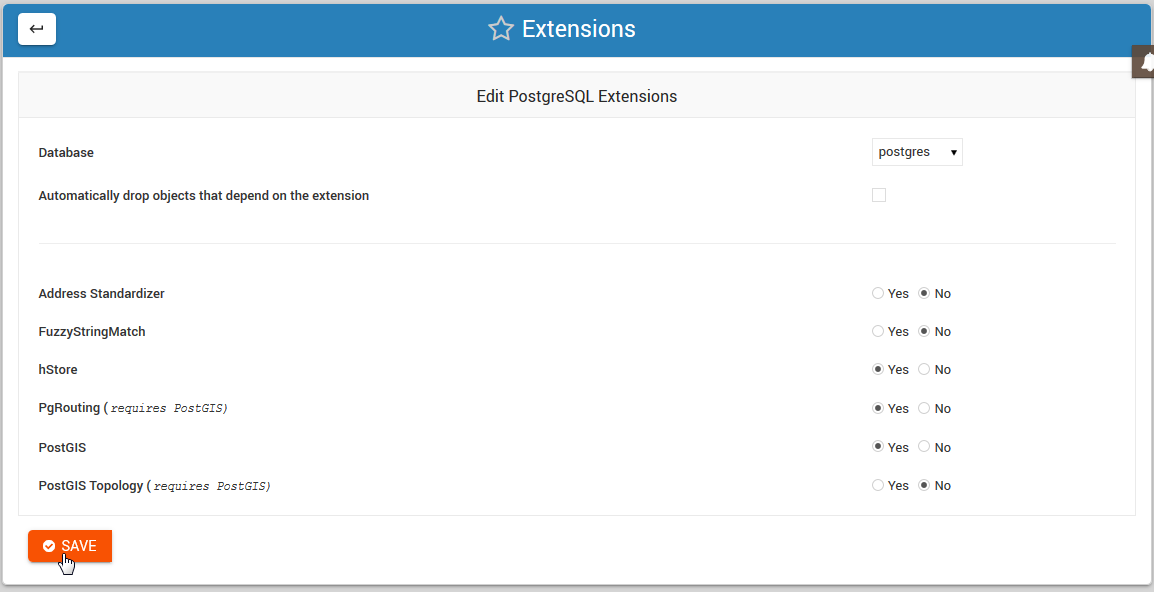
Once PostGIS has been installed on a target database, you can then return to install PgRouting:
Note
You can also un-install Extensions using above.